This guide explains how to check email logs and communication history in Taraki for candidate emails sent using either of the two available options: Via Taraki or Via Gmail.
Overview
When emailing candidates from Taraki, recruiters can choose how to send the message. The Taraki email history is the starting point for reviewing communication initiated within the application.
|
Sending option |
How it works |
Where to review the message |
|---|---|---|
|
Via Taraki |
Taraki sends the email using its own email-sending service. A Google connection is not required for this option. |
Check the email record in Taraki Email Logs / Email History. It will not automatically appear in your personal Gmail Sent folder. |
|
Via Gmail |
Taraki sends the email using the Gmail account the recruiter has connected. |
Check the email record in Taraki Email Logs / Email History. You can also find the sent copy in the connected Gmail account's Sent folder. |
Step 1: Open the Applications for the relevant job
-
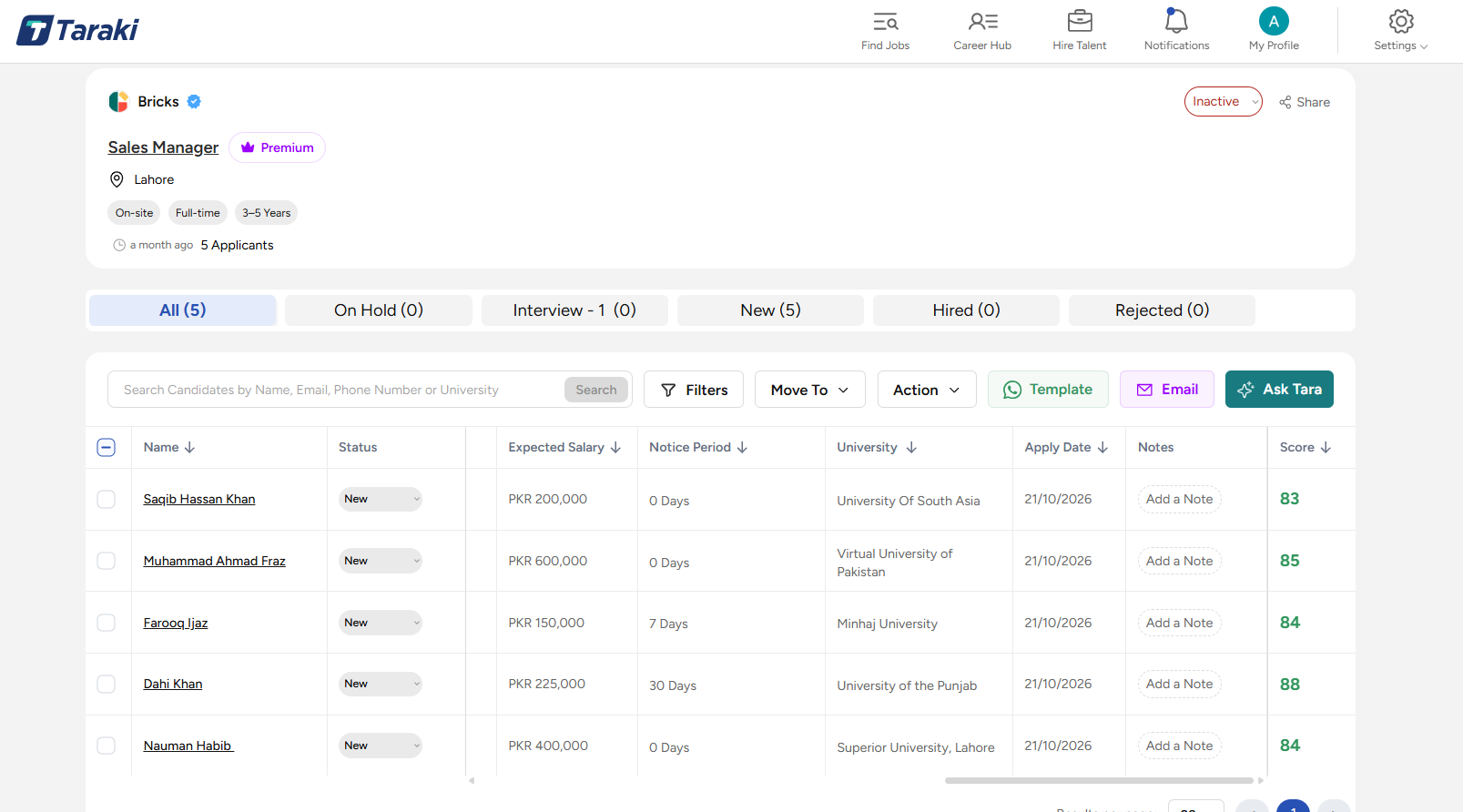
Go to the Hire Talent module in Taraki.
-
Select the relevant company.
-
Open the relevant job's applications.
Step 2: View Email History in Taraki
-
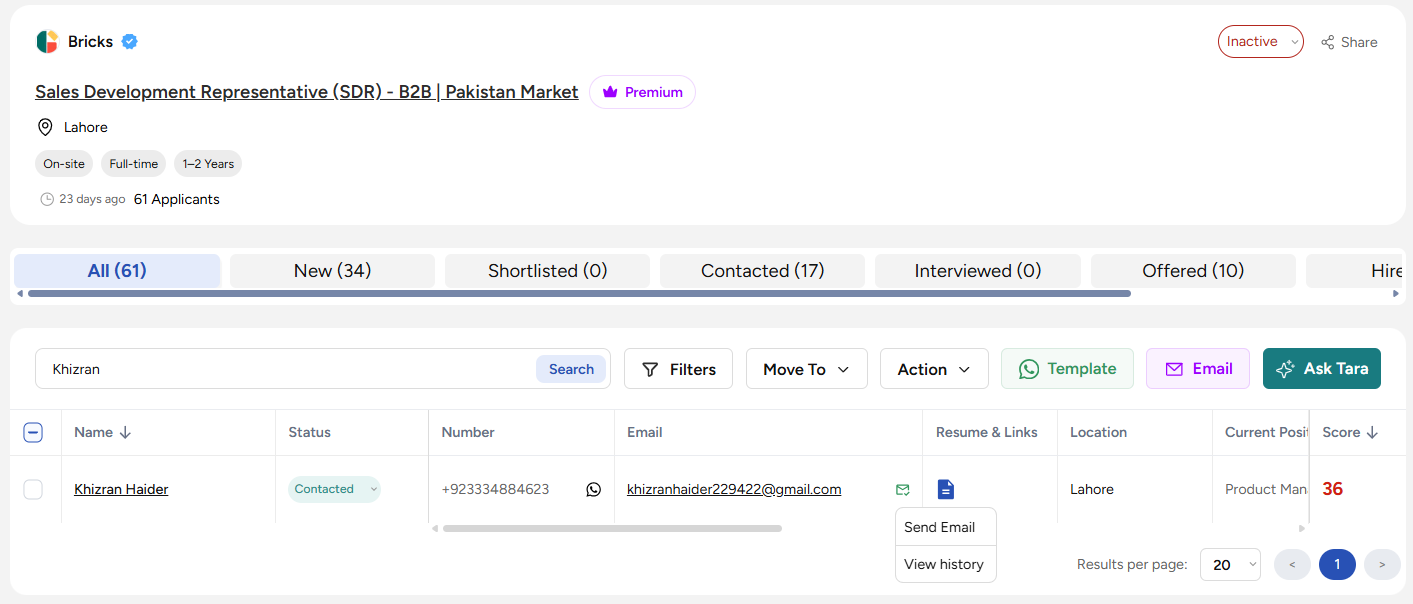
Locate the Email column in the candidate list.
-
Click the Email icon in that column to open a dropdown menu.
-
From the dropdown, select See Email History.
-
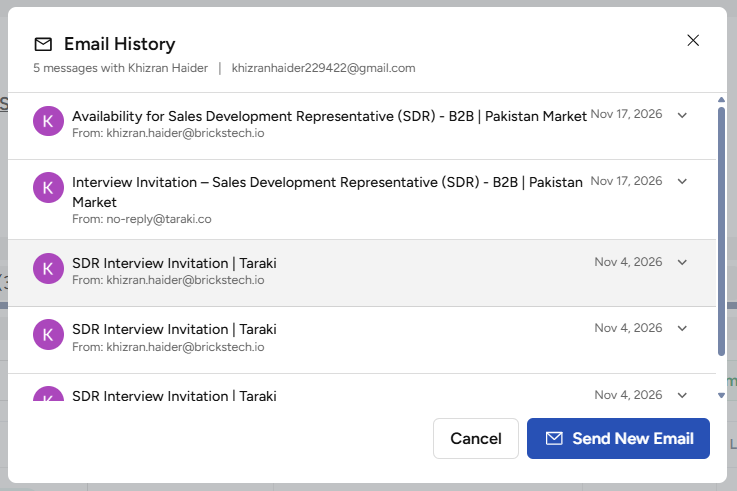
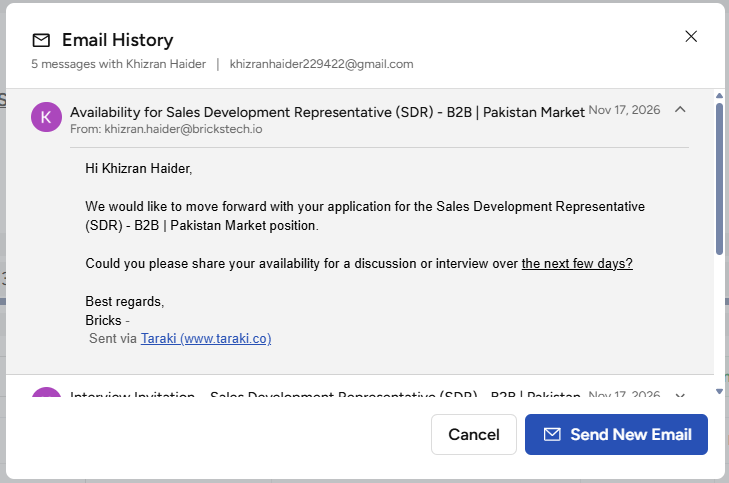
A popup will appear displaying the email communication history for the selected candidate.
-
Review the email records to see previous communications with the candidate.