.jpg)
Adding team members allows you to collaborate on hiring, manage jobs together, and streamline your recruitment process.
🚀 Before You Start
Make sure:
-
Your company profile is created
-
You have the required permissions (Admin or Owner access)
Steps to Add Members
1. Navigate to Teams
-
Log in to your Taraki account
-
Go to Hire Talent
-
Click on Teams
2. Click on “Add Member”
-
Click the Add Member button
-
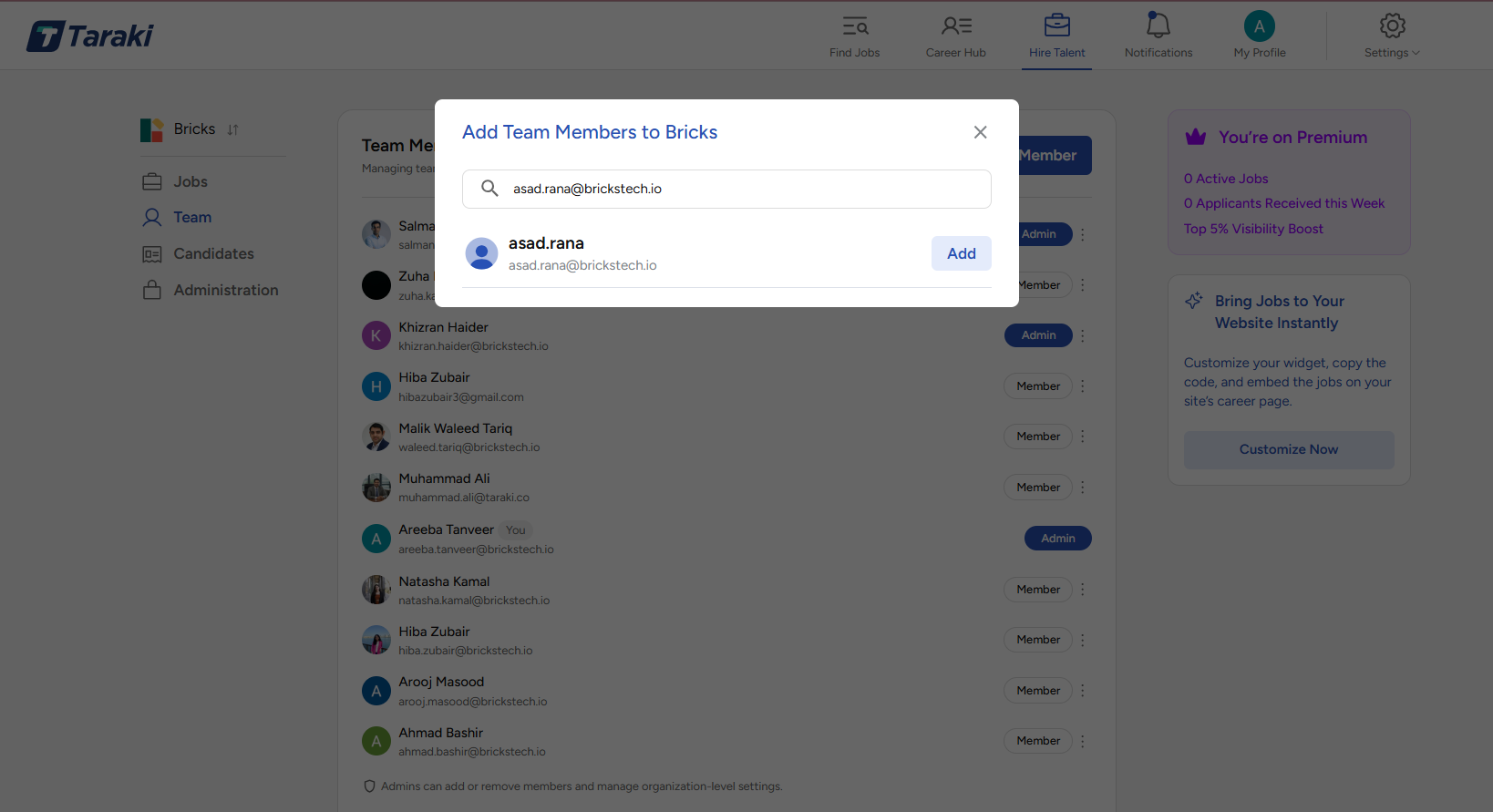
A popup will appear
-
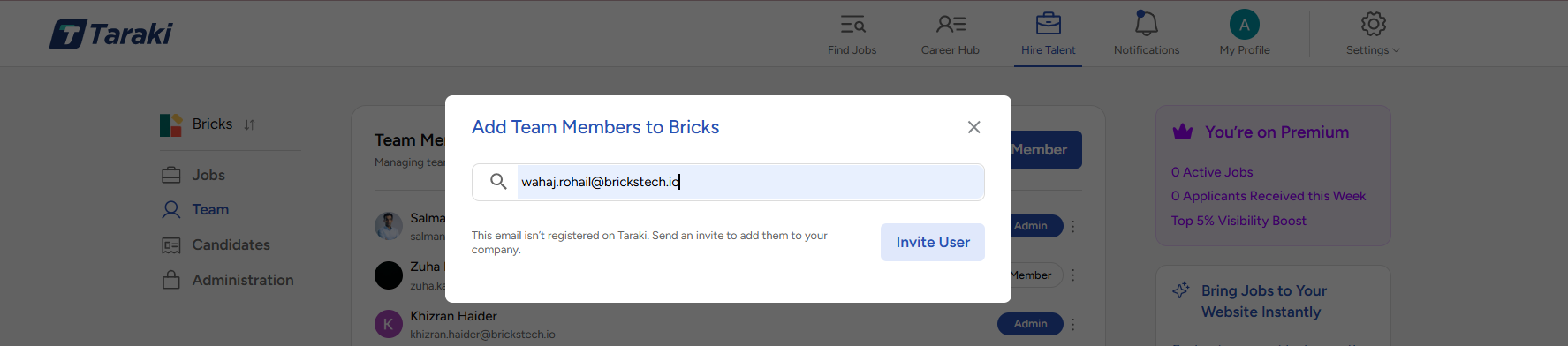
Add the member’s email address
What Happens Next?
-
✅ If the user is already on Taraki:
-
They will be added instantly to your company
-
They will also receive a notification
-
-
📩 If the user is not on Taraki:
-
An email invitation will be sent
-
They can join your company once they sign up via the link
-
Managing Member Roles
You can control access by assigning roles:
-
Promote to Admin → Give full access to manage team and hiring
-
Demote from Admin → Restrict access to standard permissions


Important Rules
-
An Admin must always exist in the team
-
If an Admin wants to leave:
-
They must assign another member as Admin first
-
-
If there is only one Admin:
-
They cannot leave until another Admin is assigned
-
-
Even if the Admin is the only member in the team:
-
They must still ensure another Admin is assigned before leaving
-
Managing Member Roles & Access
You can control access by assigning roles:
-
Admin
-
Full access to manage team members and company settings
-
Can promote/demote members
-
Can manage hiring workflows
-
-
Team Member
-
Can post jobs
-
Can view, manage, and update candidates in hiring pipelines
-
Need Help?
If you face any issues while adding or managing members, please contact the support team at support@taraki.co.