.jpg)
The Taraki Job Widget allows you to display all your active job listings directly on your company’s website or career page, automatically synced from Taraki.
Step 1: Open the Job Widget Settings
-
Navigate to the Hire Talent Module
-
On the left side of the page as highlighted in image below, locate your Company Card
-
Click on the “Customize Now” button
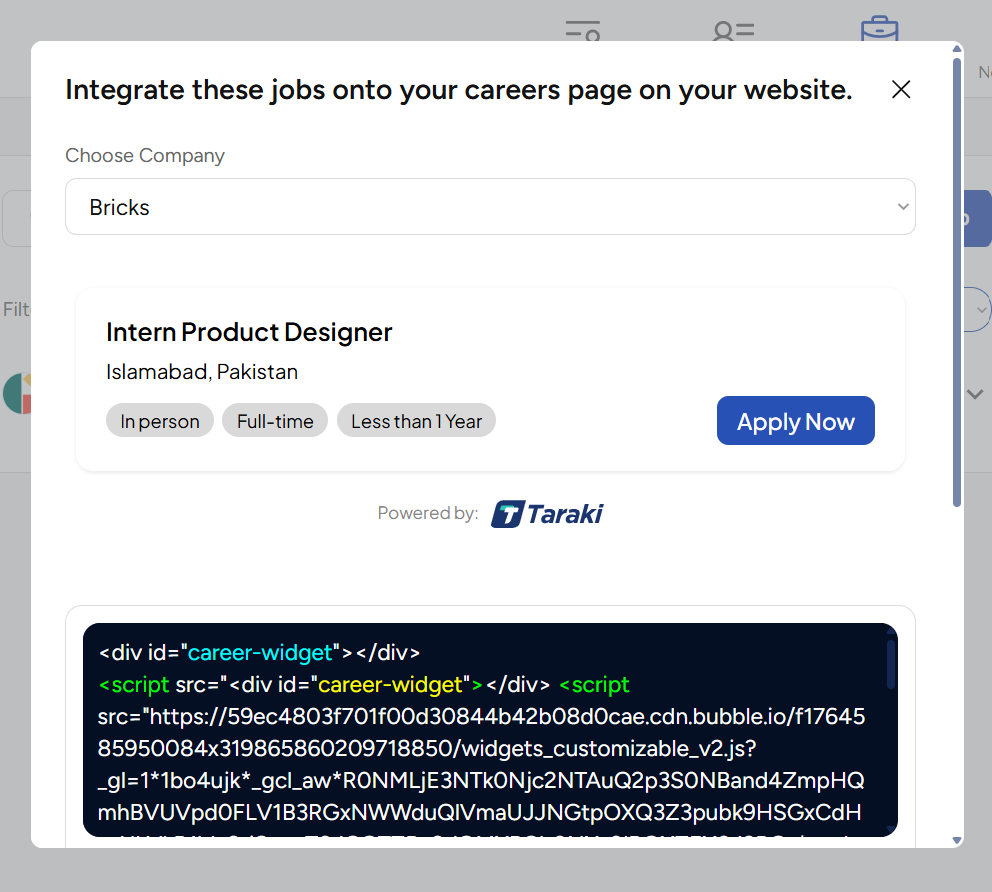
Once you click this button, a popup will open where you can configure and copy your job widget.
.png?cb=2d64ac53adf4caf13b0023491b6708bb)
Step 2: Customize Your Job Widget
Once the popup opens:
-
You will see a live preview of your job card
-
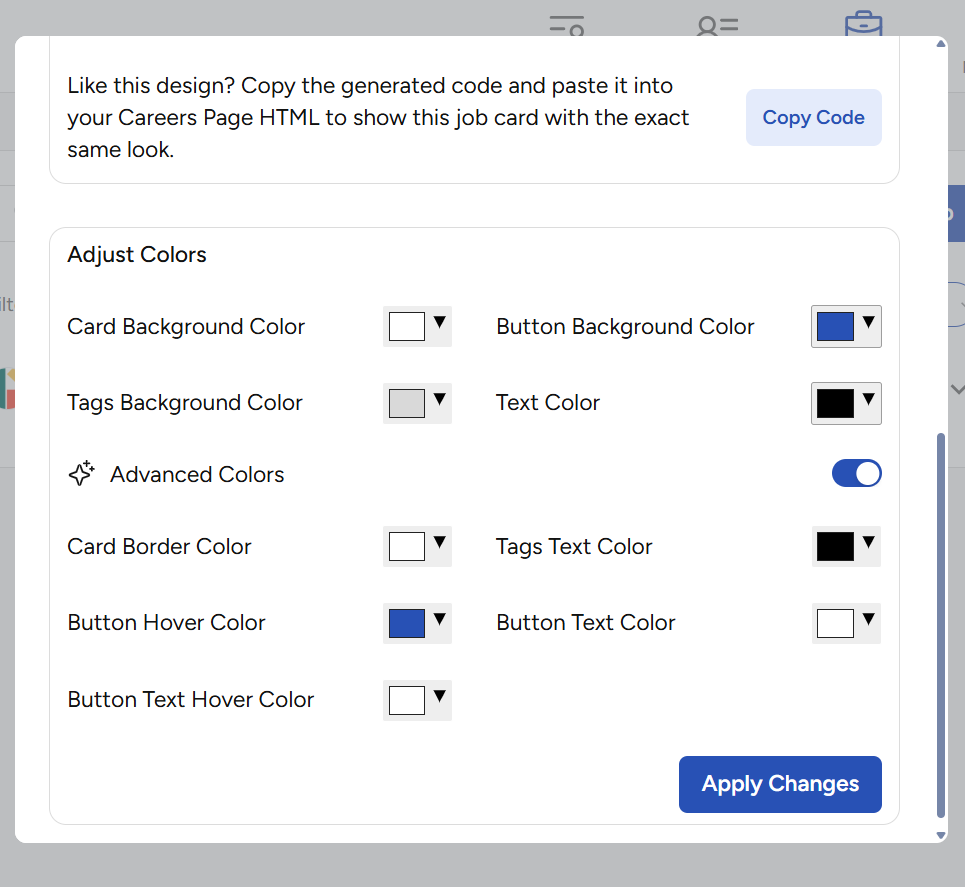
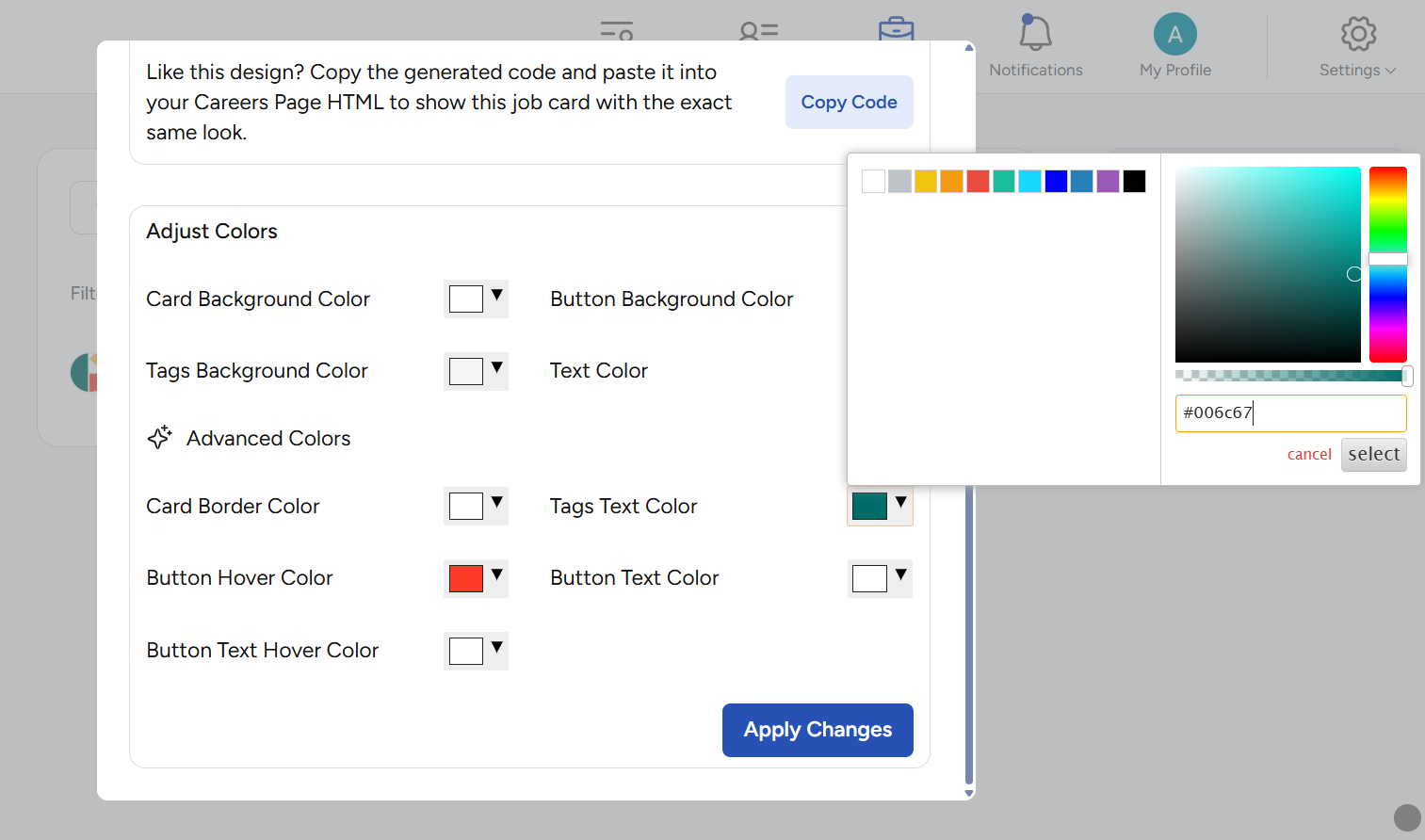
Use the available options to customize the colors so they match your company’s branding
You can adjust elements like:
-
Primary color
-
Button color
-
Background styling
As you make changes, the preview updates in real time.
Step 3: Copy & Add the Widget to Your Website
-
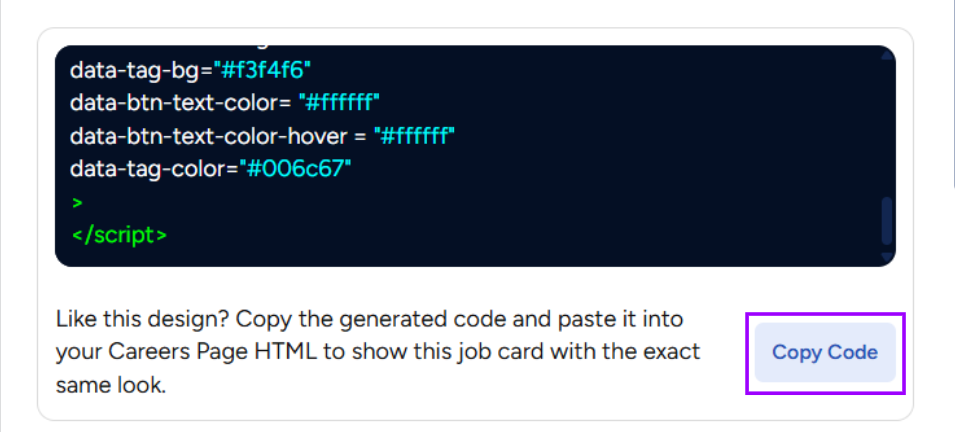
After customization, click “Copy Code” button as shown in image above.
-
Go to your company’s Career Page ( Webflow, WordPress, Framer, etc.)
-
Add an Embed / HTML block
-
Paste the copied code
-
Save and publish your page

Your job listings will now appear on your career page and stay automatically updated.
❓ Need Help?
If you run into any issues while setting up your job widget or need assistance with customization:
-
Reach out to our support team
-
Email us at support@taraki.co
We’re here to help you get everything set up smoothly 🚀