.jpg)
Connect your Google account to Taraki to send candidate emails from your own Gmail address and schedule interviews that show up on your Google Calendar.
What you can do
-
Send emails from your Gmail. Emails you send to candidates from Taraki go out from your own Gmail address instead of the Taraki address. They appear in your Gmail Sent folder, and candidate replies come straight to your Gmail inbox.
-
Schedule interviews on Google Calendar. Interviews you schedule with candidates in Taraki are added to your Google Calendar.
How the connection works
-
Each company member connects their own Google account. The connection belongs to you, not to the whole company.
-
Two company members can connect the same Gmail account.
-
You can disconnect your Google account at any time.
-
If a company member is removed from the company, their Google connection for that company is revoked automatically.
-
Taraki only asks for permission to send emails and manage calendar events. It does not read your inbox.
How to connect Google
-
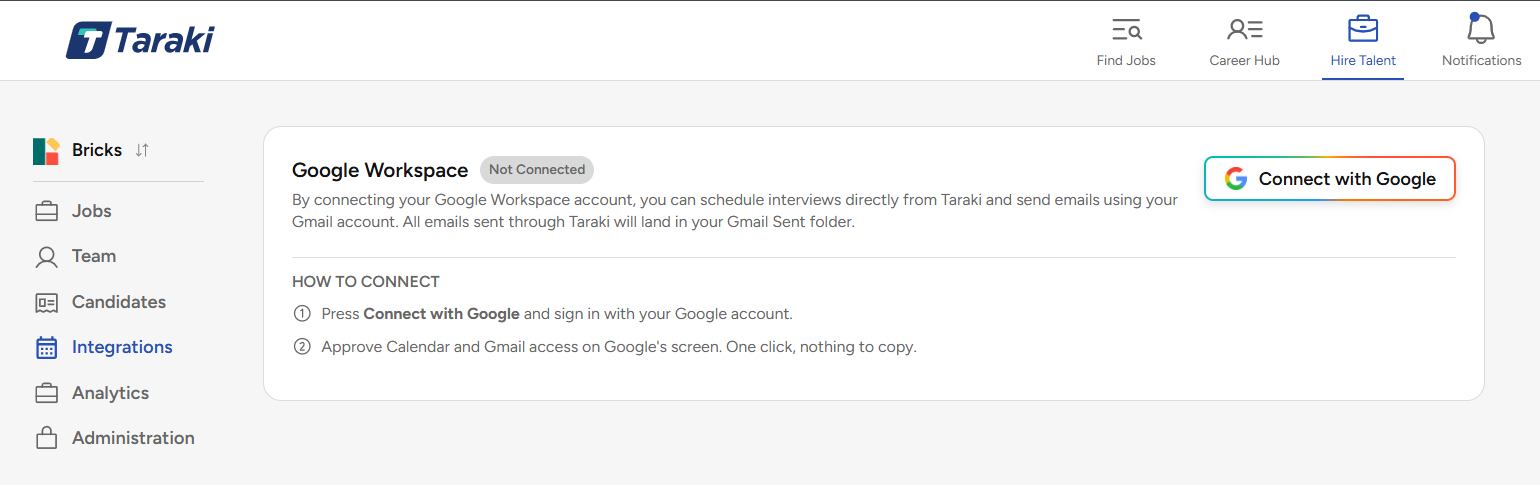
Go to the Integrations page in Taraki.
-
Click Connect with Google.
-
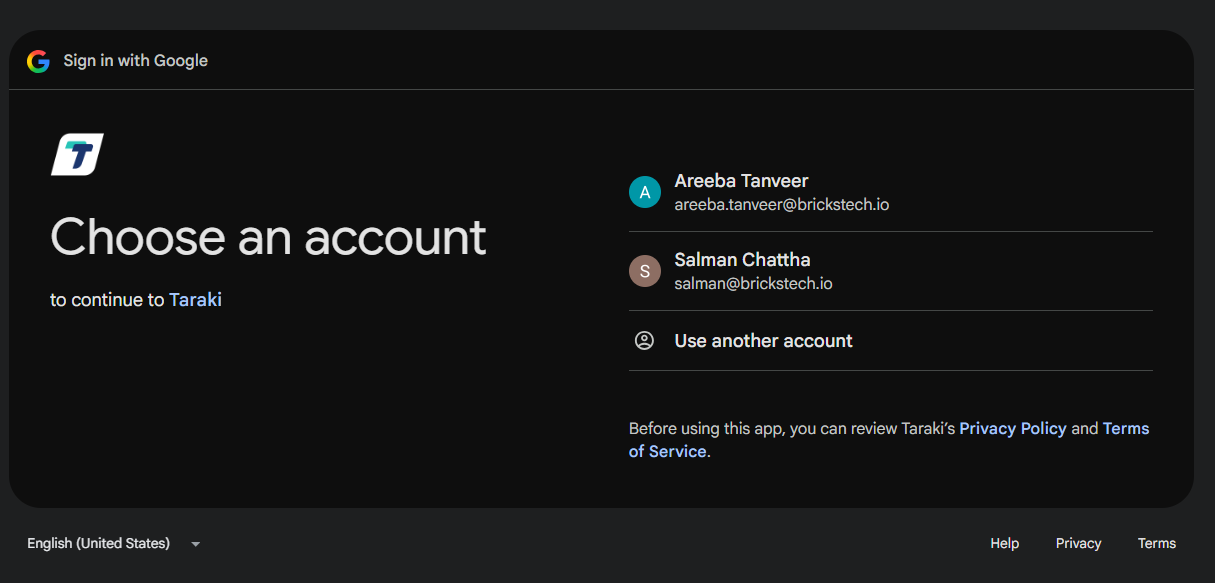
Choose the Google account you want to use.
-
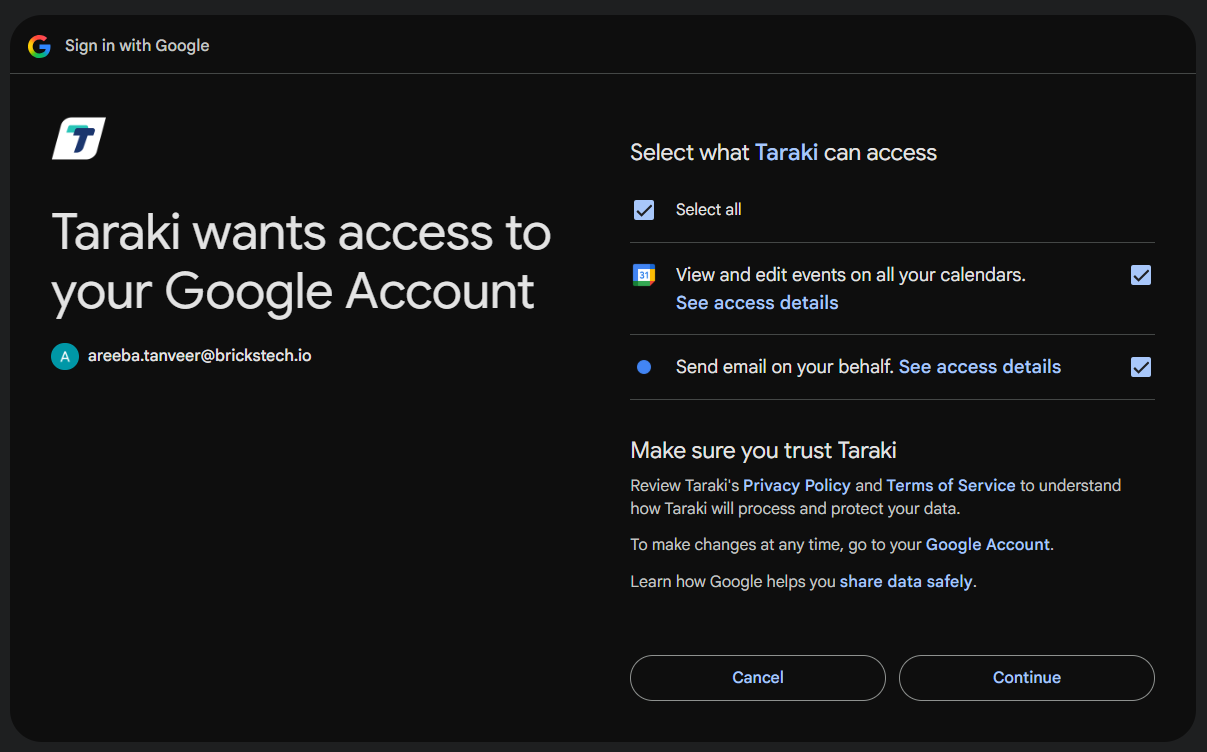
Review the permissions and click Allow. Taraki asks to send email on your behalf and to view and edit events on your calendars.
-
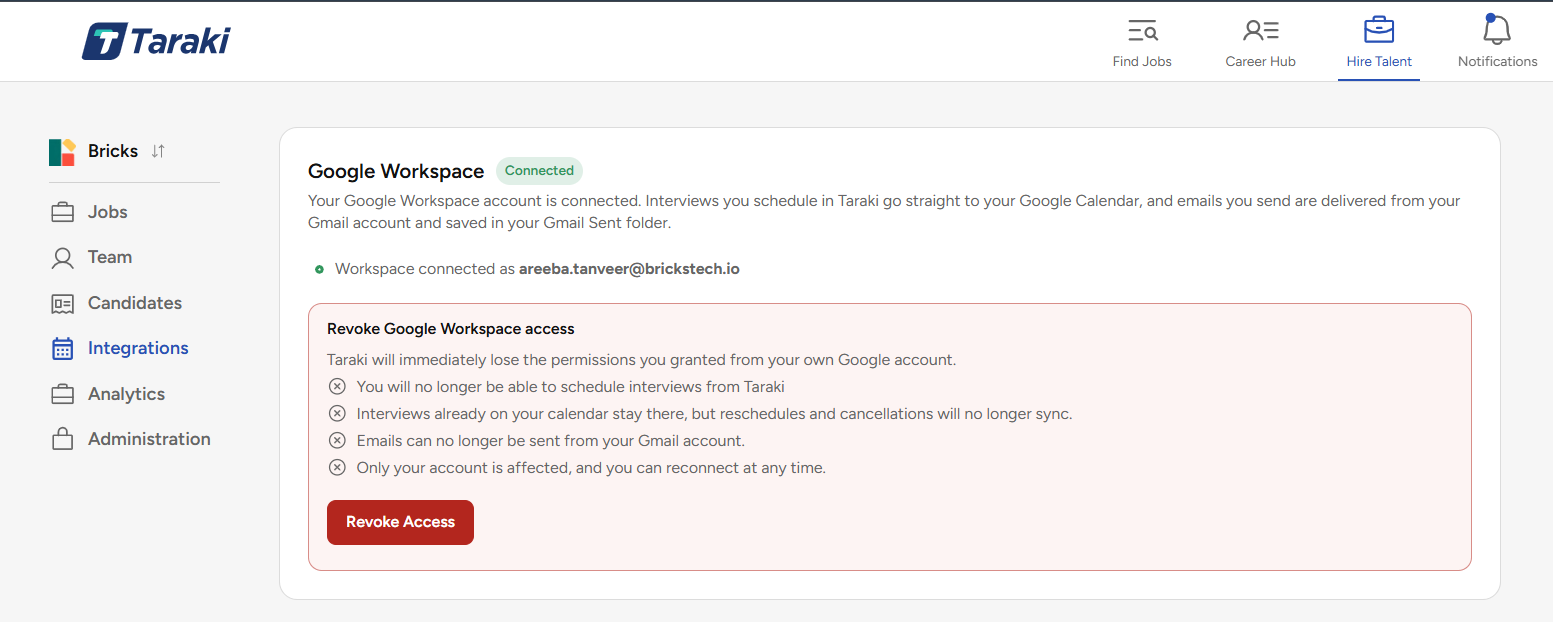
You are taken back to Taraki, and Google shows as Connected.
How to disconnect Google
-
Go to the Integrations page in Taraki.
-
On the Google card, click Revoke Access
-
Confirm.
Once disconnected, Taraki stops sending emails from your Gmail and stops adding interviews to your Google Calendar.
You can also remove Taraki's access from your Google account settings under Security, then Third-party apps and services.