.jpg)
This guide will help you to enable job postings on your LinkedIn company page and connect them with Taraki, follow the steps below carefully.
You must be a Super Admin of your LinkedIn Company Page to complete these steps.
Step 1: Access Your Company Page
-
Log in to your personal LinkedIn account
-
From your homepage:
-
Click your profile picture (“Me” icon) at the top, OR
-
Use the left-hand sidebar
-
Under the Manage section, select your company page
.png?cb=608c565add545728b3e1cb83d7c17f23)
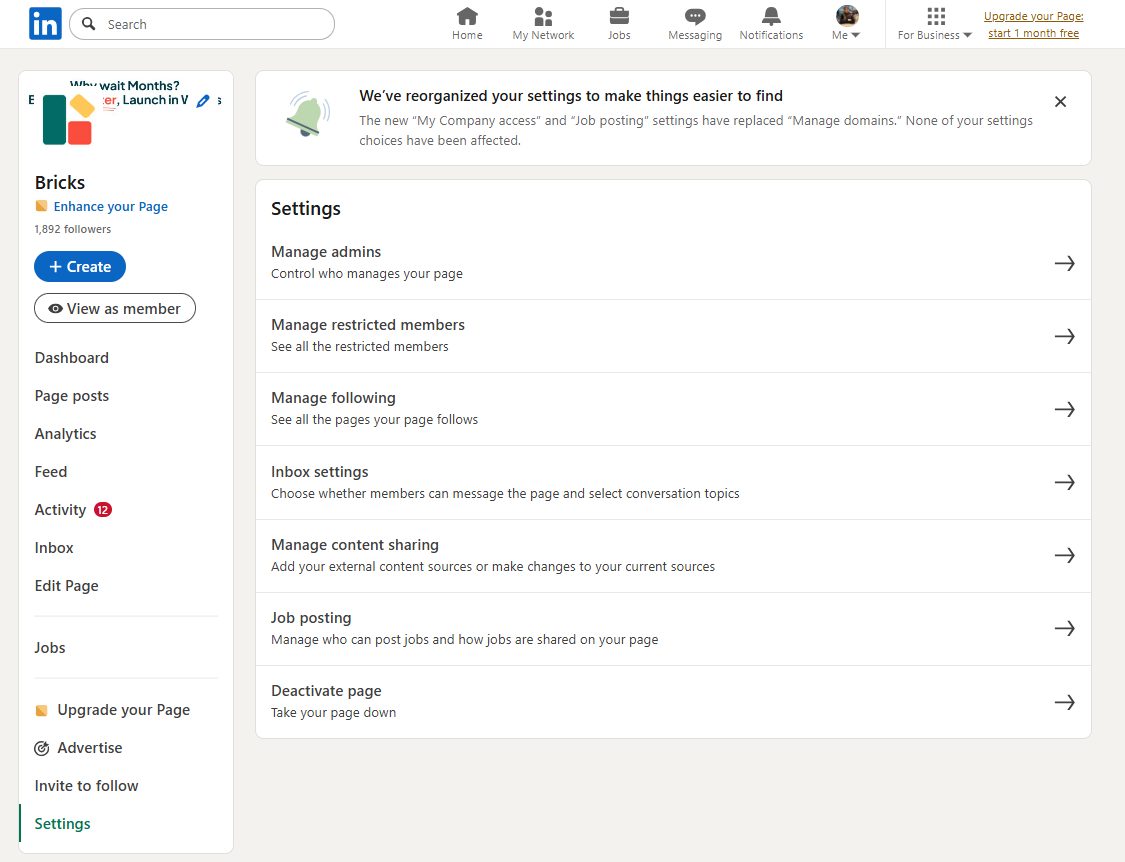
Step 2: Open Job Settings
-
Make sure you are in Admin View of your company page
-
In the left-side menu:
-
Scroll down and click Settings
-
From the submenu, select Job Postings
Step 3: Enable Basic Job Posting
-
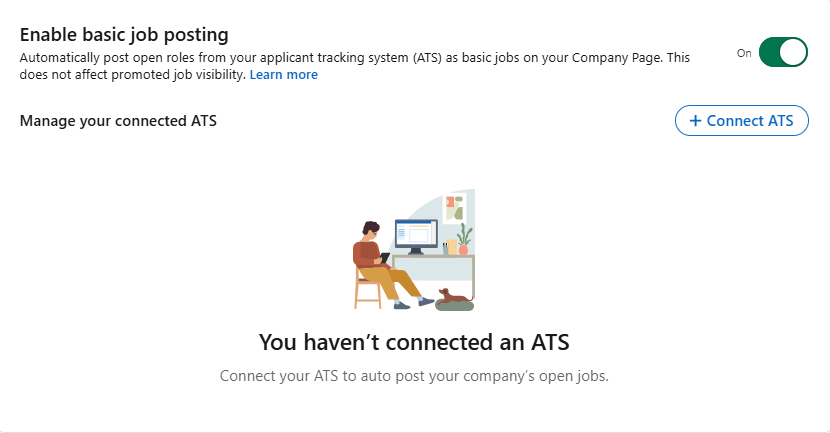
Locate the “Enable basic job posting” section
-
Turn the toggle ON (it should appear green)
Step 4: Contact LinkedIn Support
-
Once the setting is enabled, you must request LinkedIn to lift any restrictions.
-
Send an email to: LTSATSINTEGRATIONS@linkedin.com
-
The email must be sent by the Super Admin
Email Template:
To: LTSATSINTEGRATIONS@Linkedin.com
Subject: Request to Enable Basic Job Posting Access for Company Page
Hi LinkedIn Team,
We would like to enable basic job postings for our LinkedIn Company Page. The setting has already been enabled from our side.
We kindly request you to review our page and remove any restrictions that may be blocking ATS-based or partner-based job postings.
Company Page URL: [Insert Company Page URL]
Please let us know once this has been enabled or if any additional information is required.
Thank you for your support.
🎉 You're All Set!
Once enabled, any job you post on Taraki will automatically be published to your company’s LinkedIn page.