.jpg)
Accessing Application Forms
To add custom fields:
-
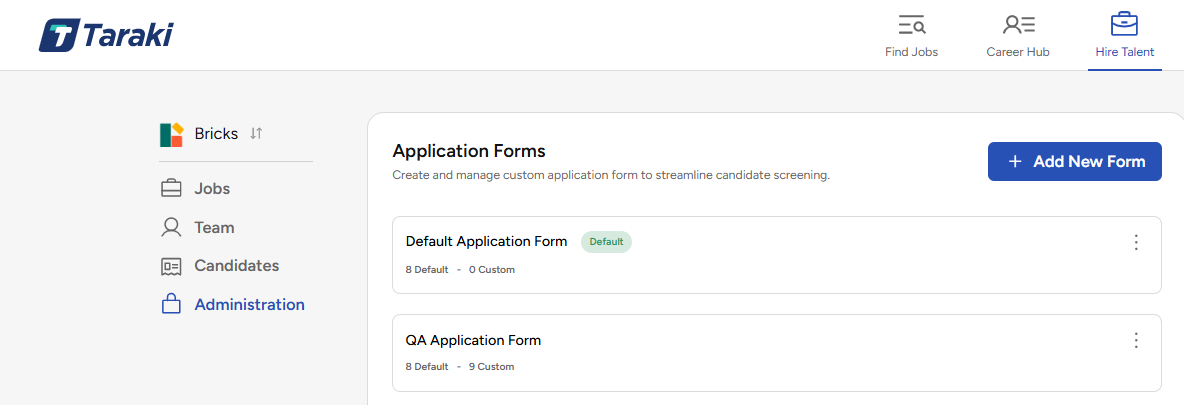
Go to Hire Talent.
-
Open the Administration tab.
-
Select Application Forms.
-
Create a new application form or open an existing application form.
What Are Custom Fields?
Custom fields are questions created by the recruiter.
They are useful when you want to ask job-specific questions that are not part of the default field list.
Examples:
-
Why are you interested in this role?
-
Are you willing to relocate?
-
What is your expected joining date?
-
Do you have experience using Bubble?
-
Upload your portfolio or sample work.
-
Rate your communication skills from 1 to 10.
Steps to Add a Custom Field
Step 1: Open the Application Form
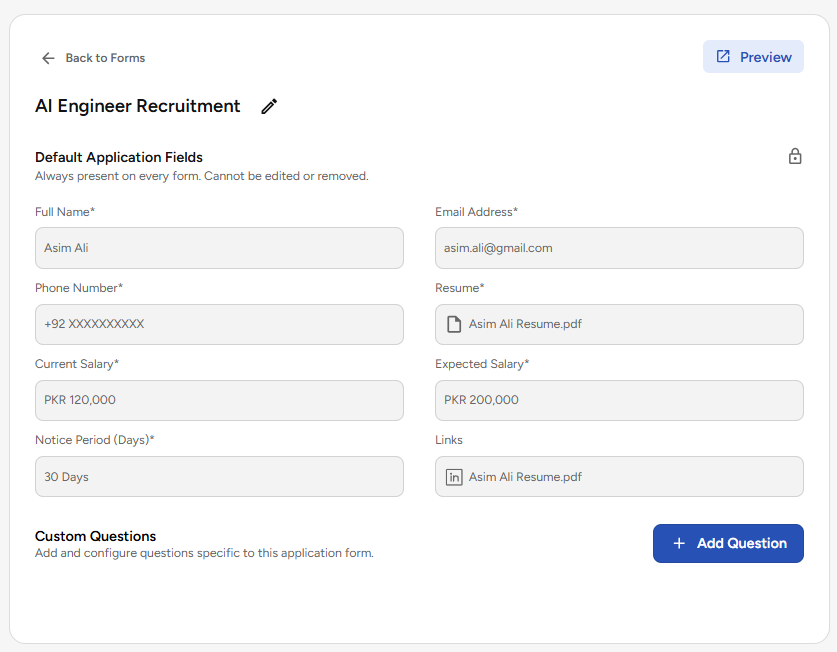
Open the application form where you want to add the custom field.
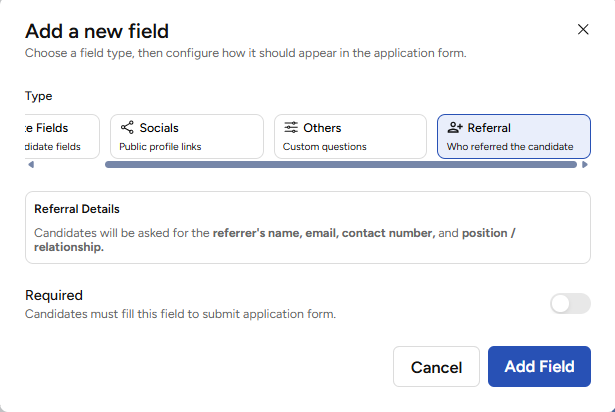
Step 2: Click Add Field
Click Add Field to open the field options.
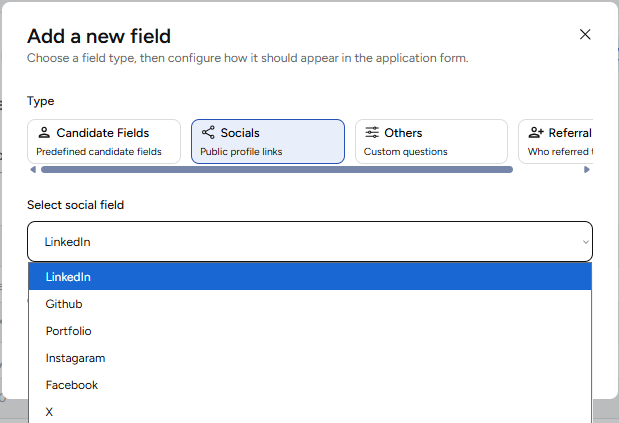
Step 3: Select Custom Field
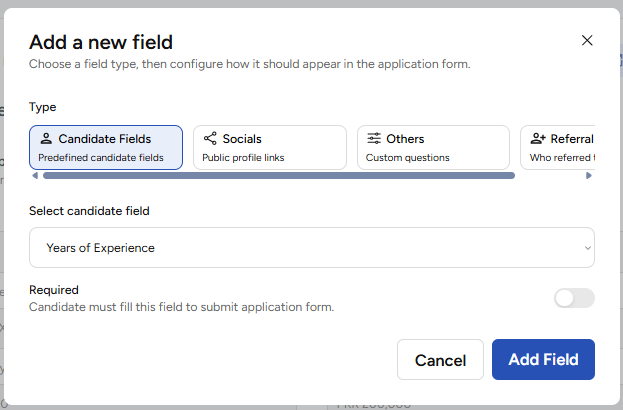
Choose Custom Field from the available field categories.
You can select from the available categories, such as:
-
Candidate Fields
-
Social Fields
-
Referral
-
Others
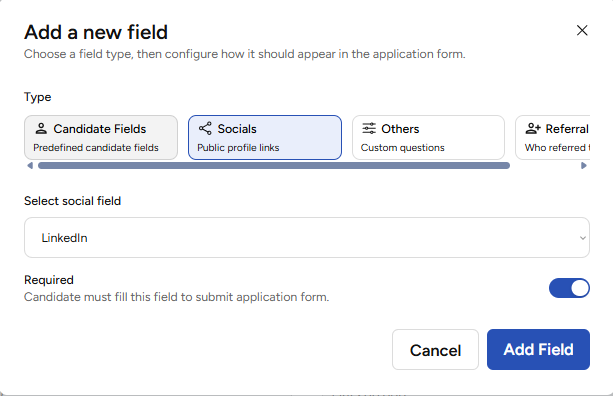
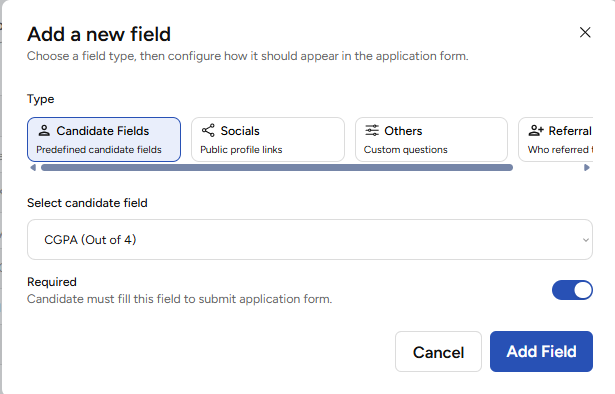
For Candidate Fields, Social Fields, and Referral, you can choose from a predefined set of available options.
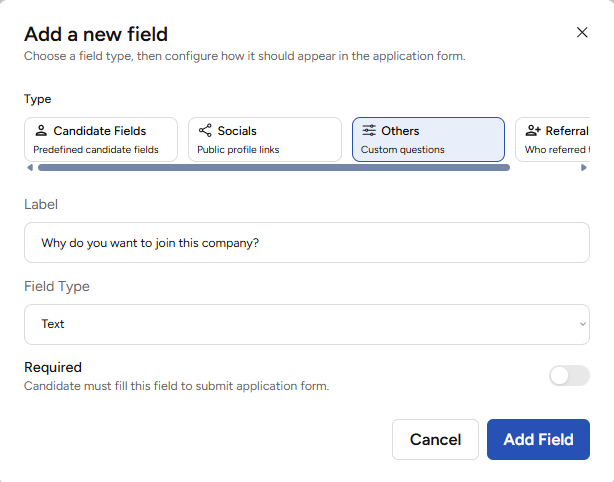
For Others, you can create your own custom question by entering a label.
Step 4: Select a Field Option or Add a Label
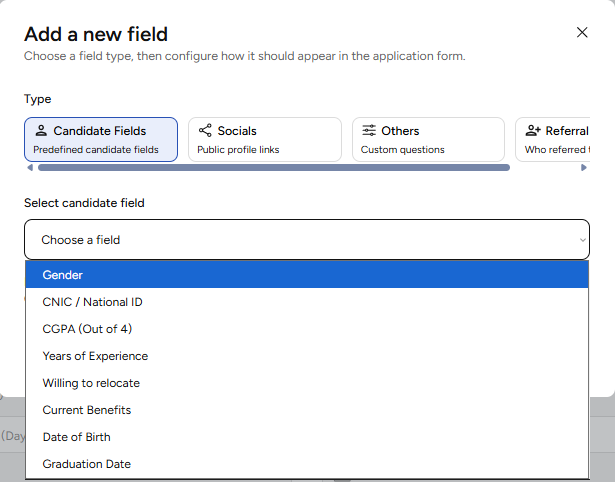
If you select Candidate Fields, Social Fields, or Referral, choose the field from the available options.
Examples:
-
Gender
-
LinkedIn
-
GitHub
-
Referral Details
If you select Others, enter the custom field label/question.
Examples:
-
Why are you interested in this role?
-
Are you willing to relocate?
-
Tell us about your relevant experience.
Step 5: Select the Field Type
Choose the field type based on the answer you expect from the candidate.
For example:
-
Text — for short answers
-
Long Text — for detailed answers
-
Number — for numeric answers
-
Date — for date-based answers
-
Yes/No — for confirmation questions
-
File Upload — for documents or portfolios
Step 6: Mark the Field as Required, If Needed
Decide whether the field should be required.
If marked as required, the candidate must answer it before submitting the application.
Step 7: Add the Field
Click Add Field.
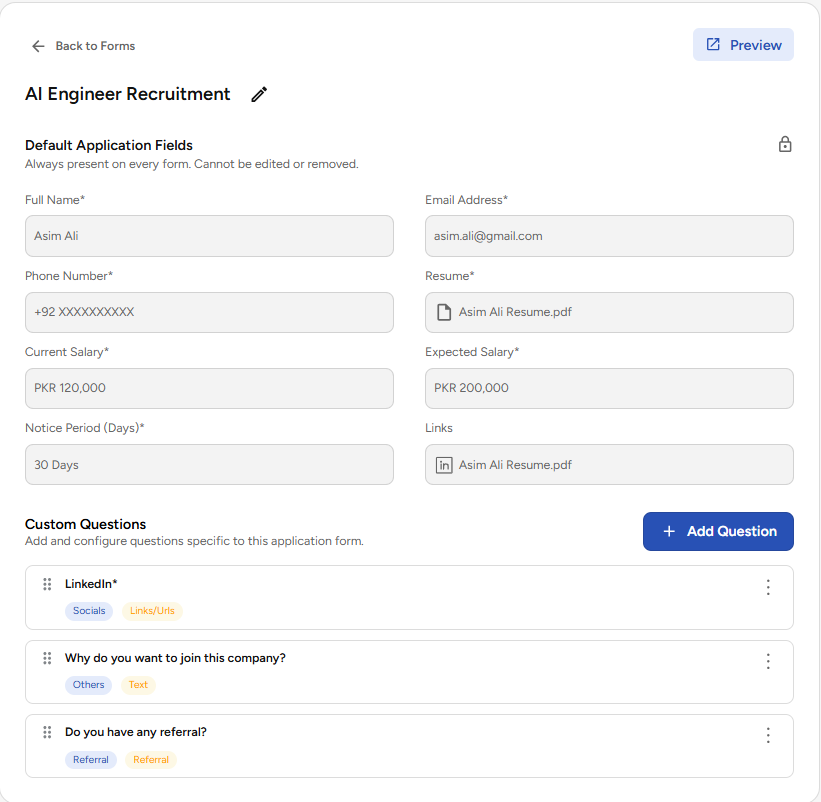
The field will now be added to the application form.
Need Help?
That’s it — you have successfully added fields to your application form.
You can continue adding more fields based on the information you want to collect from candidates. Once all fields are added, review the form to make sure everything is clear, relevant, and correctly marked as required.
For any questions or support, please contact us at support@taraki.co.